Okay, now for the last part of this tutorial: We’re going to turn the motion trails effect into a Digital Asset, which a single node with inputs, outputs and parameters (just like any other node) that can be shared with other artists. The network we made to create the effect is big and ugly, and no one in their right mind would want to copy and paste that whole thing from scene to scene and start jumping across the SOP and CHOP networks and look for individual nodes to tweak parameters. Digital Assets let us package everything together nicely.
I just wrote out a new version of the Maya to FBX export script, this time in Python, and with a lot of bugs and instabilities cleaned up. It auto-detects deforming vs. non-deforming objects, and exports each type of object to a separate FBX, optionally from a selection. Everything is baked into world space so there are no complications with unexpected transforms.
The new script is on the scripts page, in place of the old MEL one.
Post a comment if you have any questions…
Now that the initial trails setup is done, it’s time to get the audio effect in there. CHOPs in Houdini (channel operators) are really, really powerful, but they’re often the last part of the program that anyone touches. They can turn simple motion and effects into much, much more complex effects pretty easily. I still am unaware of the vast majority of things you can do with CHOPs, but I hope this example will be a good start for anyone who’s trying to learn Houdini…
I haven’t posted in a long time mostly because I’ve been spending the majority of the last month devouring Houdini tutorials on the internet. Houdini is capable of handling incredibly complex visual effects, and its node-based architecture makes it ideal for effects R&D… if you can get past the learning curve. I’ve never seen a more complicated-looking program.
Anyways, after beating my head against the wall for the better part of a month I’ve finally started making sense out of this program, and I want to share an effect I’ve been researching for an upcoming spot, and turn this into a sort of tutorial for dealing with particle systems, creating objects on the fly, and manipulating shapes using audio. Later on I’ll also go over how to make the effect into a “digital asset,” meaning packaging the effect into a single node with its own interface that you can then use for other shots or share with other artists.
I really dislike video tutorials so I’m going to try to write this one out. The first segment will be about creating the trails, the second will be about modifying the trails using CHOPs, and the third will be about repackaging the effect as a digital asset and building an interface.
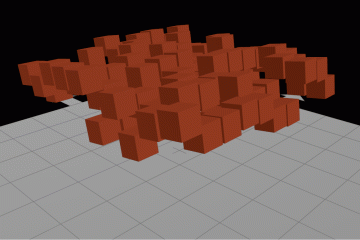
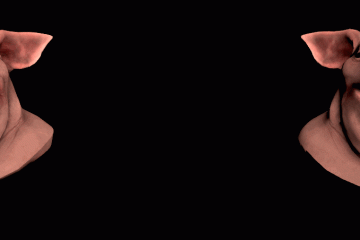
Anyways, here’s the effect we’re creating:
I realize it kind of all turns to spaghetti in the end, but that could probably be fixed with a little more fine-tuning, and I wanted to show a little complexity to the effect. Hit the jump for a big huge post about how this is done.
I’ve been working on some tools recently that open groups of Maya scenes in batch mode, running Python or MEL operations on each file (for example, to quickly add a render layer and apply materials to a large group of objects at once, or to get the names of all the references in a scene) and then either returning data or saving the file. This sort of thing could be done in the usual windowed Maya interface, but this is slow and means the user has to sit there and watch Maya open a bunch of files, run operations and all that. Running scripts on lots of files at once is much faster if you’re running Maya in standalone (“batch”) mode.
There are other, more informative posts on how to get Python running in standalone mode (I learned a lot from this one in particular), but the gist of it is that you start by running /bin/mayapy.exe, and then initialize the Maya Python interpreter by calling the following function:
import maya.standalone as standalone standalone.initialize(name='python')
Once that’s done you can start scripting like normal, starting with import maya.cmds as cmds and working from there. Some commands are not available in standalone mode, especially anything to do with UI.
Anyways, while working on a script that is meant to process huge heaps of unsorted Maya files, I realized that crashes were going to be a frequent problem when opening ancient, broken scenes, so I couldn’t just load an instance of Maya in standalone mode from a script and let it run through everything in a loop. I needed to be able to process one file at a time, and then either return some useful information if the process is successful, or let me know if Maya crashes so I can avoid that file later on or at least mark it.
To do this, I used Python’s subprocess module. Again, I’m not going to go into a ton of detail about the module, it’s pretty complicated, but I’ll give a quick example of how I’m using it to return information from a Maya process when I am calling the script from Maya (or any other program, really).
Let’s say I want this script to add a new render layer to several scenes, and add all meshes in each scene to that new layer. First, I’ll write the script that actually creates the layer and assigns objects.
import sys import maya.standalone as std std.initialize(name='python') import maya.cmds as cmds filename = sys.argv[1] layername = sys.argv[2]
The sys.argv[1] and sys.argv[2] are easy ways to pass variables to an external script. sys.argv[n] just means the nth command line argument, so sys.argv[1] is the first command-line argument when running the script (after calling for the script name, for example, by running mayapy.exe yourScript.py). When we call this script, we’ll pass it a file to open, and a layer name to add.
def addRenderLayer(filename,layername):
cmds.file(filename,o=1)
newLyr = cmds.createRenderLayer(name=layername,empty=1,makeCurrent=1)
meshes = cmds.ls(type='mesh')
xforms = []
for i in meshes:
xf = cmds.listRelatives(i,p=1)[0]
xforms.append(xf)
cmds.editRenderLayerMembers(layername,xforms)
cmds.file(s=1,f=1)
sys.stdout.write(newLyr)
return newLyr
addRenderLayer(filename,layername)
Here we’re creating an empty render layer based on the “layername” argument, then we’re getting all the meshes in the scene. In most scenes, people add transforms to render layers, not their individual shape nodes, so we’ll do this by creating an empty list “xforms,” then going through each mesh in a loop and finding their first related transform node (hence the listTransforms(i,p=1)[0] since listTransforms returns a list) and appending it to “xforms,” then adding “xforms” to the new render layer. Then we just save the file and return the name of the layer (I just like having return values for my functions).
We also write the name of the new layer to stdout. I’ll go into more detail about this later, but it lets us send information back to the program that calls this script later on.
Save this file as makeNewLayer.py somewhere in your default scripts directory.
Next, we’re going to make the process that we run from Maya…
import maya.cmds as cmds
import subprocess
# replace mayaPath with the path on your system to mayapy.exe
mayaPath = 'c:/program files/autodesk/maya2011/bin/mayapy.exe'
# replace scriptPath with the path to the script you just saved
scriptPath = 'c:/users/henry/desktop/addRenderLayer.py'
def massAddRenderLayer(filenames,layername):
for filename in filenames:
maya = subprocess.Popen(mayaPath+' '+scriptPath+' '+filename+' '+layername,stdin=subprocess.PIPE,stdout=subprocess.PIPE,stderr=subprocess.PIPE)
out,err = maya.communicate()
exitcode = maya.returncode
if str(exitcode) != '0':
print(err)
print 'error opening file: %s' % (filename)
else:
print 'added new layer %s to %s' % (out,filename)
Okay, a lot going on here. The subprocess.Popen function is calling mayapy.exe with three parameters: first, the script we want to run (makeNewLayer.py) followed by the two arguments that script wants (the filename and the layer name), then the input stream and the output stream which are both set to subprocess.PIPE. I’m not quite knowledgeable enough about the subprocess module to go into specifics, but basically when you run a process there are three “streams”: the input, output and error streams, usually called stdin,stdout and stderr. When you set the input and output streams to subprocess.PIPE when calling Popen(), you can be sure that the process will receive any input stream you give it (which we are not doing here; instead we’re using the sys.argv method shown above) and also communicate back any output it gives.
The next procedure, communicate(), returns two variables: stdout and stderr. We can use this for debugging or monitoring progress. Normally in the Maya script editor, if your script fails for whatever reason, you will get some kind of (possibly) useful information back from an error. However, you won’t have any idea what goes wrong with a subprocess unless you are listening to the error stream.
communicate() does a couple other awesome things. First, and most importantly, it waits for the subprocess to complete before continuing with your script. This is REALLY IMPORTANT, as you definitely don’t want a script like this to continue running until the process is finished. Second, it sets a few variables on the Popen() object, one of which is Popen.returncode. If you have ever slogged through Maya render logs and noticed lines like “Maya exited with status: 210″ or “Maya exited with status: 0,” those numbers are exit codes. Status 0 means the program exited normally; any other exit code means something went wrong. Since I want to be notified if something goes wrong when opening or editing a scene, I check to see if Popen.returncode is anything other than zero, and if it is, I print out the error stream and leave a notice that says something went wrong. If everything worked, I just want to know that it worked, and so I print a string. Since I wrote the output layer to sys.stdout, when I read stdout from the subprocess, I get the name of the newly created layer. I do this since the layer might not come out with exactly the name I wanted if another node in the scene had the same name as the new layer!
I’ve been using the subprocess module along with Maya standalone more and more as I make more complex applications. It’s incredibly useful to be able to process many files at a time… if you get any good ideas, you know where to post them.
I was just talking to a colleague about his problems using displacement maps with VRay, and then remembered my confusion when I first tried to work with them. So here’s a post about it!
Normally in Maya/mental ray, when you want to apply a displacement map you just create a displacement material and connect it to the shading group you want displaced. If you want to adjust the amount of displacement, you actually grade the image itself by adjusting the color gain and offset on the file node. It’s simple, it works, whatever.
You can still apply displacement like that in VRay, but there is a better and more flexible way to handle it using VRayDisplacement sets. They’re kind of like VRayObjectProperty sets, but they act as a sort of container for displacement settings instead of generic render settings and object IDs. In order to use these sets, you want to select the objects to displace with a single map, and go to Create > V-Ray > Apply single VRayDisplacement node to selection. A set will be created, visible in the Outliner.
Next up is to assign a displacement texture to the set. This means you don’t have to connect a displacement shader to any shading group; the set will handle that connection. When you select this set, the Attribute Editor will give you just two options: a checkbox saying “override global displacement,” and a plug for a displacement material. Check the box on, and then connect a texture to the displacement material (not a material, but a texture). I usually run a file texture through a Luminance node first to make the connection easier (file.outColor –> luminance.value), unless I’m using a vector displacement map in which case I’m using color information instead of just luminance or alpha.
So where are all the displacement options? You have to add them. If you don’t change anything, the displacement will use the default values set in the VRay render settings under Settings > Default Displacement and Subdivision. This defaults to an edge length of 4 pixels, a maximum subdivision number of 256 (this is a lot of subdivisions!!), and a displacement amount of 1.0 (which is usually way too high). These are terrible values for most scenes, the displacement will look grossly exaggerated and it will take forever to render.
In order to tweak the settings, you need to add the appropriate attributes to the VRayDisplacement set. With the set selected, open the Attribute Editor and select Attributes > V-Ray > Displacement Control and Attributes > V-Ray > Subdivision and Displacement Quality. Now you have a ton of options to play with, the most important of which are Displacement Amount (color gain), Displacement Shift (color offset), Edge Length, and Max Subdivs. I recommend starting with a displacement amount of 0.1-0.5, and a max subdivs of maybe 16-32 before starting to increase those settings.
I have no idea why these attributes have to be added manually, but hell, it’s still better than mental ray.
I’ve been working on a set of tools for making flexible, twistable arms and legs quickly. I haven’t rigged in a long time, so this has been an arduous process, but I’ll post notes about what I run into along the way.
One problem that I remember having over and over (since I’ve never rigged frequently enough to ever learn the correct method) is that when applying an IK handle to a joint chain, and then applying a pole vector constraint to that IK handle, the joints can sometimes move subtly. It’s not always a big deal, but it can be a problem when you’re trying to have multiple matching skeletons for FK and IK control, and suddenly your rotations don’t line up anymore.
The fix, as it turns out, is really easy. Before you apply the pole vector constraint, you need to place your controller (whatever is going to drive the pole vector) exactly between the start of the IK chain, and the end effector, e.g., the shoulder and the wrist. This is quickly done by selecting the start and end joints, and then the controller, and creating a point constraint (do not maintain offset). Then delete the constraint. Next, use an aim constraint to point the controller directly at the middle joint (say, the elbow). Delete the constraint. Then you just need to move the controller along its pointing axis a little ways, to push it away from the bones. For example, if your aim vector for the constraint was +X, then push your controller a few units forward in its local X axis. Now you can create the pole vector and the joints shouldn’t snap at all.
For those of you who like to use a linear workflow in Maya, you might notice that once you apply a lens shader (mental ray) or an overall gamma setting (vray) to your scene with gamma 2.2, while your gamma-corrected textures might look great, your image planes will be washed out. This is a pain when you’re trying to use a plate as a reference for lighting your scenes. There is a way to gamma correct image planes, but the setup takes a few more steps and it’s somewhat counter-intuitive. Thanks, Maya!
The first thing to do once you attach an image plane to the camera is to switch the “Type” attribute from “image” to “texture.” Once you do this, you can attach a regular File node to the texture, and set up your image sequence attributes on the file node if you are using a sequence.
The next step is to connect the file node to a gammaCorrect node… create a gammaCorrect node, set the gamma in all three channels to 0.454 (or whatever the inverse of your current gamma is if you’re not correcting to 2.2) and then connect the outColor of the file node to the “value” of the gammaCorrect node.
The last step is the tricky part. Try connecting the output of the gammaCorrect node to the imagePlane node… where does it go in the Connection Editor? Maya decided that you, the user, should be sheltered from this most dangerous input, and it’s been hidden by default. Turn on “show hidden” on the right side of the Connection Editor, and then connect the outValue of the gammaCorrect node to the “texture” input of the imagePlane.
I don’t really understand why this has to be so difficult in Maya, but the same could be said about a lot of this program.
A lot of After Effects compositors like to use a plugin to allow texture substitution on objects, called Re:Map. You render out a special color pass from your 3D scene, and then the plugin uses those colors to wrap a flat image onto the object, basically allowing you to re-texture in post.
A lot of people in the past have asked me or others to find the material you’re supposed to use to render this pass from Maya. There are different ways to make it, but by far the easiest is to just use a place2dTexture node and a surface shader (or a VrayLightMtl, if that’s your thing).
Connect the place2dTexture.outU –> surfaceShader.outColorR. Then connect place2dTexture.outV –> surfaceShader.outColorG.
That’s it. Apply the material to everything and you’re done. In VRay, you don’t even need a material if you want to save a render layer; just create a VrayExtraTex element on your render layer and connect the place2dTexture outputs to the ExtraTex element in the same manner.
The setup is really easy but there are a few things to watch out for. First of all, if your UV’s are distorted, then any texture you place on it is going to be distorted. So you need good UV’s. If you’re using simple rectangular billboards, make sure the UV’s are normalized (you can normalize UV’s in the UV Texture Editor). Also, the image quality will suffer if you aren’t rendering to a floating point file format– 32-bit floating point images are best to avoid artifacting.
One other subtle thing to watch out for. If you are using a linear workflow when you render (and you should be!) it’s easy to screw up this render and end up with weirdly warped images. This render should NOT be gamma-corrected in any way, so disable your lens shaders if you’re in mental ray, and set your gamma to 1.0 and turn off “linear workflow” if you’re in VRay. It’s hard to see, but take a look at the difference between a linear render of this pass and an sRGB (gamma 2.2) render:
The image on the left is the correct one. Using a color-corrected UV pass will cause your substituted textures in After Effects to appear very warped around certain edges.
(I’ve made this mistake way too many times.)
I recently took a staff position at the up-and-coming Gentleman Scholar Studios in Santa Monica. I’ll be their “Technical Director,” which more or less means I’ll be doing more of the same old scripting, lighting and materials. Which is totally fine with me… these guys are gonna be big.
Also on a positive note… the Maya pipeline system I’ve developed here at Scholar, “Mustache,” is now fully production-ready, and being used for several simultaneous 3D spots right now! It’s taken a long time to work out the bugs, and there’s still plenty more, but it’s made jobs that would have previously been impossible to manage a comparatively painless procedure. I’ll be posting more later about the more unique features of Mustache and why nobody here wants to work without it anymore.